Connection issues often show up at the most inconvenient times—right when you need to charge your phone before heading out or transfer photos right before a deadline. These moments can feel frustrating, especially when the reason behind the failed connection is unclear. Many people assume their device is malfunctioning when the real problem is something as simple as a dusty port or a worn cable. By learning how to identify common cable-related causes, you can quickly restore functionality and avoid unnecessary replacements. In this article, we will walk through practical steps that help you troubleshoot and resolve USB cable problems with confidence.
Step 1: Physical Inspection and Basic Checks
Examining Connectors for Damage or Debris
Start by gently feeling along the length of the cable to look for splits, dents, or soft spots that indicate internal wire fatigue. Even minor fraying can interrupt the power or data flow, causing unstable connections. The connectors themselves are common failure points because dirt and lint can easily build up around the metal contacts. Wiping the connector with a soft dry cloth usually helps restore a cleaner connection surface. If debris is stuck inside the port or connector, proceed with caution to avoid bending the fragile pins.
Testing Cable Fit in USB Ports
A loose connection often signals wear either in the cable tip or inside the device’s port. Try lightly wiggling the connected cable; if the device charges only when held at a specific angle, the connector may be worn down. Good cables generally fit snugly without requiring pressure, so anything unusually loose deserves further inspection. Testing the cable with another device can help determine whether the issue is isolated to one port. If switching devices restores a firm connection, the original port may be the source of the problem.
Step 2: Systematic Connection Testing
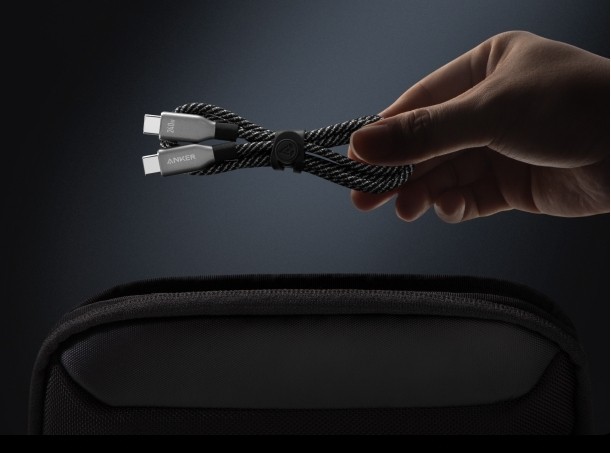
Once you’ve inspected the cable, testing different combinations helps pinpoint the exact cause more easily. Try connecting your cable to a second device, then try a known working cable on your original device. This simple cross-checking method often reveals whether the issue lies with the cable or the device. When a reliable replacement, such as Anker cables, immediately restores stable charging or data transfer, it becomes evident that the previous cable has reached its limits. Understanding how different usb types behave during these tests can also help users identify whether inconsistencies stem from the cable design or from port-specific wear.
Step 3: Cleaning and Maintenance Solutions
Safe Cleaning Techniques for Different USB Ports
Cleaning USB ports requires gentle care because the metal pins inside are delicate and can bend easily. Using compressed air is the safest method for removing dust without direct contact. For stubborn particles, a soft brush or a wooden toothpick used carefully can help loosen debris. Avoid using liquids because moisture can corrode the components and create new issues. With routine gentle cleaning, you can prevent many connection problems from occurring in the first place.
Proper Cable Storage to Prevent Damage
Storing cables carelessly—stuffed into bags or tightly wrapped—can slowly break the internal wiring. A loose loop is usually the safest way to store a cable without placing strain on the ends. Keeping cables away from heavy objects prevents crushing damage that may not be immediately visible. If you habitually carry cables in a pocket or pouch, consider using a small organizer to avoid sharp bends. These small habits extend the life of your cables and reduce the frequency of replacement.
Step 4: Advanced Troubleshooting by USB Type
USB-C Specific Issues and Solutions
USB-C ports are versatile but sensitive to dust, which can interrupt the contact points used for fast charging. If your device supports high-wattage charging but suddenly slows down, debris or a weakened connector tip may be the cause. Cleaning and reseating the cable often restores normal performance when the issue is minor. In some cases, particularly with frequent usage, the internal grip of the port may loosen over time. Checking cable behavior across multiple devices helps confirm whether the problem lies in the cable or the port.
Lightning Cable Common Failure Points
Lightning cables often fail at the point where the connector meets the cable body, especially if they’re bent frequently during charging. A failing Lightning cable may still show a charging icon, but the connection will drop intermittently. This is usually caused by internal wire fatigue resulting from repeated bending. Testing the cable with another Apple device helps determine whether the cable remains reliable. If the issue persists across devices, replacing the cable is often more practical than attempting a repair.
Micro-USB Connection Problems
Micro-USB connectors tend to loosen over time due to their asymmetrical shape, which places more stress on one side of the port. Users often notice that the cable works only when lifted or pushed in a specific direction. Cleaning the port can help if debris is preventing proper alignment, but persistent looseness generally signals internal wear. Because Micro-USB is an older standard, some cables may also lack proper shielding, causing inconsistent charging speeds. Testing with another device or cable provides a quick confirmation of where the issue lies.
Conclusion
Troubleshooting USB cables becomes much easier when you know what to look for—from connector damage to compatibility issues. If a cable continues to fail after testing, cleaning, and adjusting how it’s connected, replacement is usually the most efficient solution. Damaged cables not only slow down charging but can also interrupt essential data transfers, making reliability crucial in daily life. Choosing well-built cables reduces the likelihood of recurring issues and ensures a more stable experience overall. With these step-by-step methods, you can confidently diagnose problems and keep your devices running smoothly every day.